

Import Tests From Qase
Export your tests in Qase as a CSV file and import that file into Testomat.io. Your folders come across as the same tree, and each test keeps its steps and expected results.
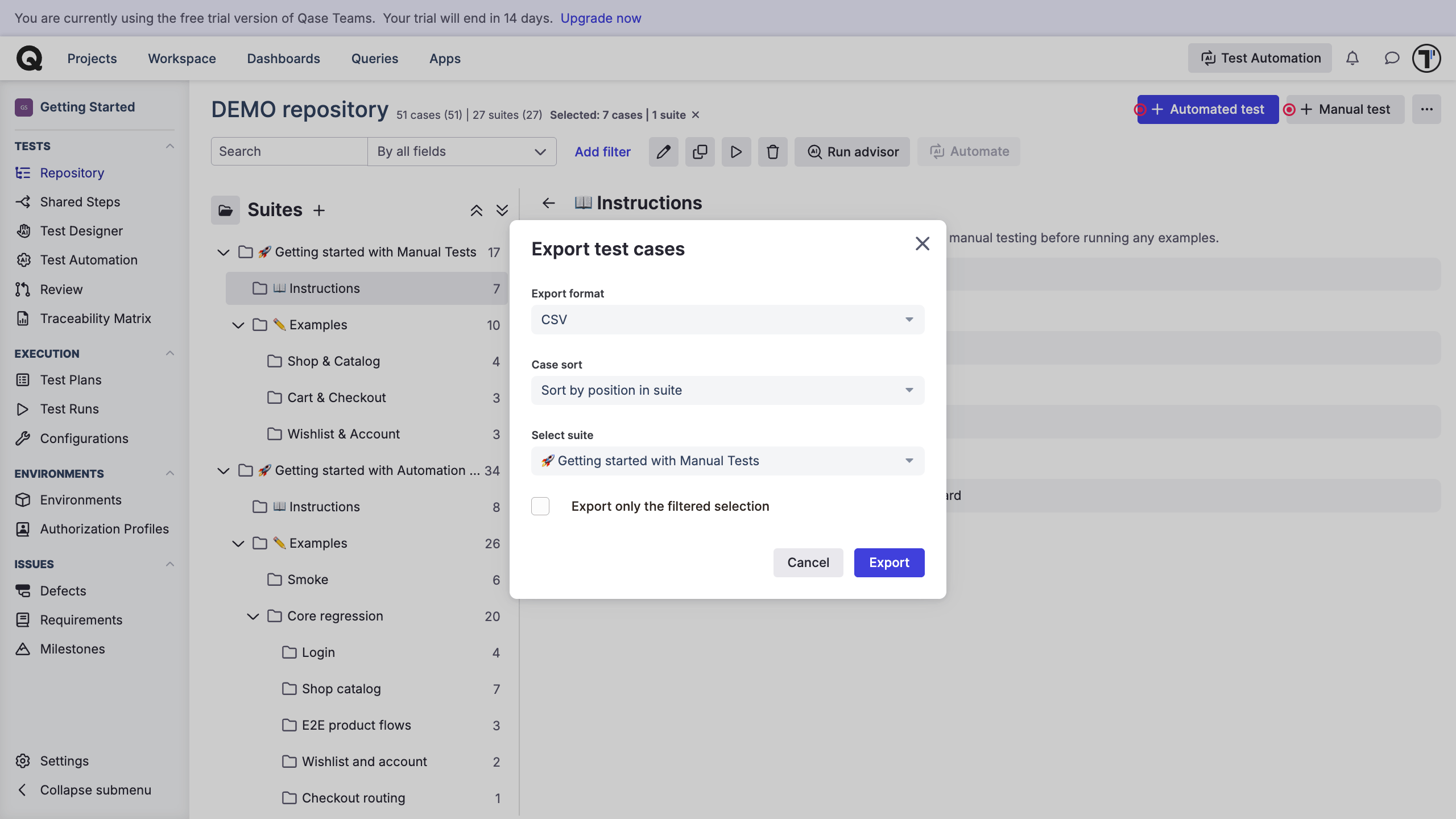
Export Qase tests
Section titled “Export Qase tests”Export your tests from Qase:
- Open your Qase project.
- Export your test cases as a CSV file.
- Save it on your computer.
Import your Qase file
Section titled “Import your Qase file”Start importing your tests to Testomat.io:
- Open your project and go to the Tests tab.
- Click the (
…) menu. - Choose Import from other TMS.
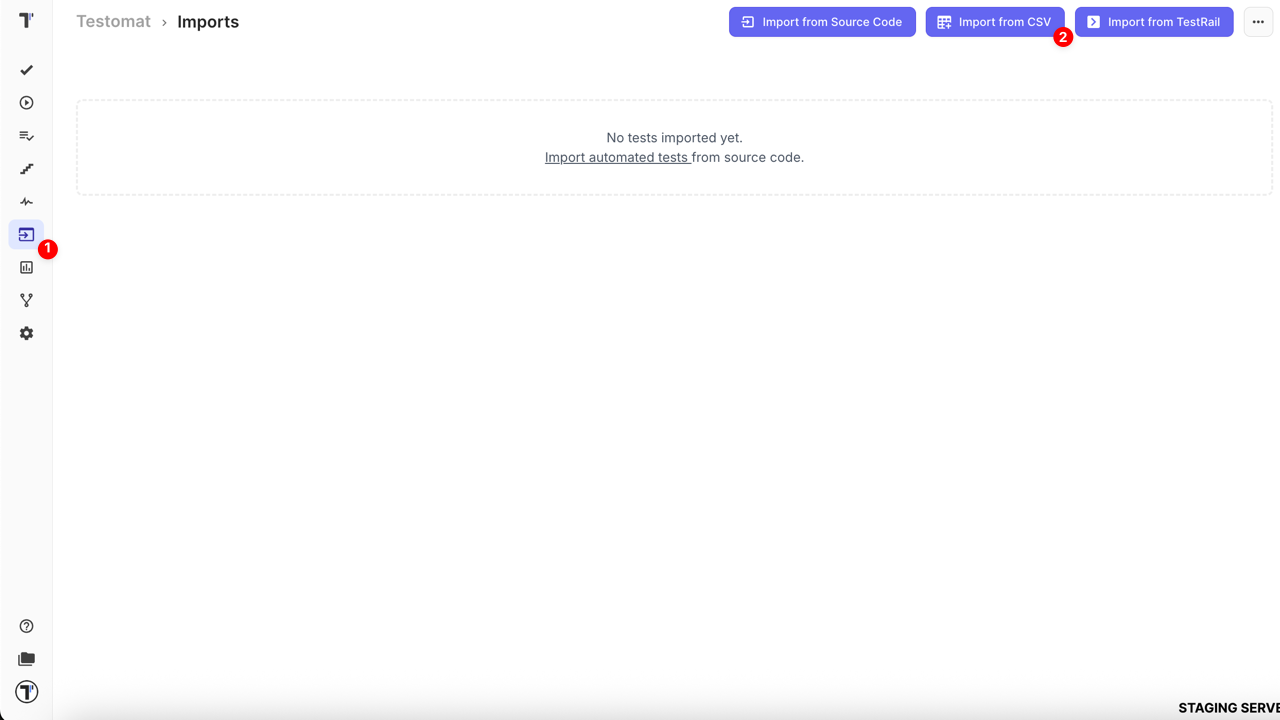
In the Imports window:
- Click Import.
- Choose Import from CSV. A sidebar opens on the right.
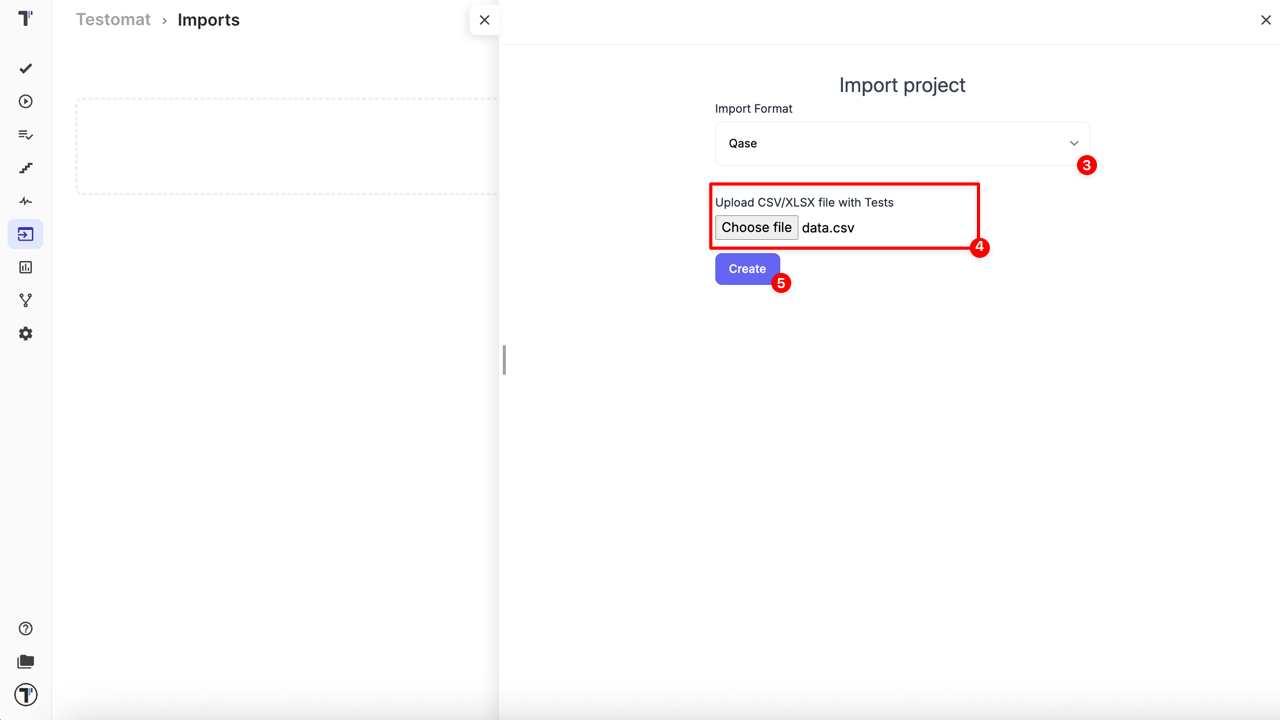
- Choose Qase from the dropdown.
- Click Choose file, select your exported CSV.
- Click Create.
Testomat.io reads the file, and your tests appear on the Tests page.
Example file
Section titled “Example file”Not sure your export looks right? Download the sample and compare the first row with yours.
If this doesn’t work
Section titled “If this doesn’t work”- The import fails. Check that the first row of your file holds column names.
- Your folders are flat. Make sure you picked Qase in the dropdown, not another format.
- Something is still off. Contact support with your file attached.
Next steps
Section titled “Next steps”- Migration from Qase - the full tutorial, including how to carry Qase properties over as custom fields.
- Import from CSV/XLSX - the column reference and every other supported format.
- Labels and Custom Fields - organize your imported tests by status, severity, or any Qase property.